Robots.txt: The Complete Guide
Even though SEO specialists put most of their effort into improving the visibility of pages for their corresponding keywords, in some cases it’s required to hide certain pages from search engines. Let’s find out a bit more about this topic, from the basics through to the advanced syntax and how it applies to AI crawlers too.
Table of Contents
What is a robots.txt file?
Robots.txt is a file that contains the areas of a website where search engine robots are forbidden from crawling. It lists the URLs the webmaster doesn’t want Google or any search engine to index, preventing them from visiting and tracking the selected pages. We accomplish this action through the robots.txt disallow tag that you will see in the examples further down.
When a bot finds a website on the internet, the first thing it does is check the robots.txt file to learn what it is allowed to explore and what it has to ignore during the crawl.
Robots.txt example
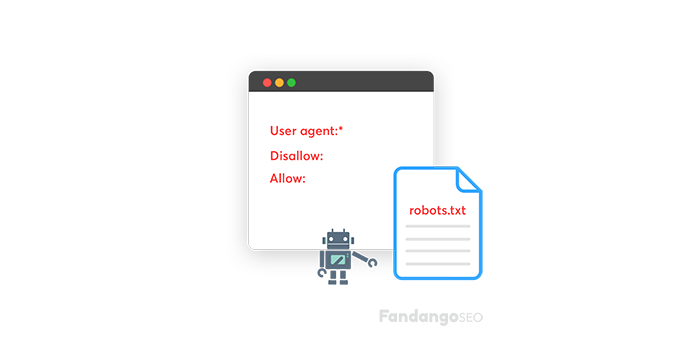
To give you a robots.txt example, this is its syntax:
User-agent: *
# All bots – Old URLs
Allow: /
Disallow: /admin/*
What is robots.txt in SEO
These tags are required to guide the Google bots when finding a new page. They are necessary because:
- They help optimize the crawl budget, as the spider will only visit what’s truly relevant and it’ll make better use of its time crawling a page. An example of a page you wouldn’t want Google to find is a “thank you page”.
- The robots.txt file is a good way to force page indexation by pointing out the pages.
- Robots.txt files control crawler access to certain areas of your site.
- They can keep entire sections of a website safe, as you can create separate robots.txt files per root domain. A good example is, you guessed it, the payment details page.
- You can also block internal search results pages from appearing on the SERPs.
- Robots.txt can hide files that aren’t supposed to be indexed, such as PDFs or certain images.
Where do you find robots.txt
Robots.txt files are public. You can simply type in a root domain and add /robots.txt to the end of the URL and you’ll see the file, if there is one.
Warning: avoid listing private information in this file.
You can find and edit the file at the root directory on your hosting, checking the files admin or the FTP of the website.
How to edit robots.txt
You can do it yourself
- Create or edit the file with a plain text editor.
- Name the file “robots.txt”, without any variation like using capital letters.
Here is an example where you want to have the site crawled. Pay attention to how we use the robots.txt disallow tag.
User-agent: *
Disallow:
Notice that we left “Disallow” empty, which indicates that there’s nothing that is not allowed to be crawled.
In case you want to block a page, then add this (using the “Thank you page” example):
User-agent: *
Disallow: /thank-you/
- Use a separate robots.txt file for each subdomain.
- Place the file on the website’s top-level directory.
- You can test the robots.txt file using Google Search Console before uploading it to your root directory. The URL Inspection tool will tell you whether a given URL is blocked.
- Take note that FandangoSEO is the ultimate robots.txt checker. Use it to monitor them.
See, it isn’t so difficult to configure your robots.txt file and edit it anytime. Just keep in mind that all you want from this action is to make the most of the bots’ visits. By blocking them from seeing irrelevant pages, you’ll ensure their time spent on the website will be much more profitable.
Finally, remember that the SEO best practice for robots.txt is to ensure that all the relevant content is indexable and ready to be crawled. You can see the percentage of indexable and non-indexable pages among the total pages of a site using FandangoSEO’s crawl, as well as the pages blocked by the robots.txt file.
Advanced robots.txt syntax
The examples above cover the basics, but robots.txt supports a few more directives and pattern-matching rules worth knowing once you’re managing a larger or more complex site.
Wildcards and the end-of-string anchor
Google’s robots.txt parser supports two special characters: *, which matches any sequence of characters, and $, which marks the end of a URL. These let you write rules that cover a pattern instead of a single exact path.
User-agent: *
Disallow: /*.pdf$
Disallow: /*?sort=
The first line blocks every URL ending in .pdf, wherever it sits on the site. The second blocks any URL containing a ?sort= parameter, which is a common way to keep faceted or sorted filter pages out of the index without listing every single one.
Allow and Disallow precedence
When an Allow rule and a Disallow rule could both apply to the same URL, the more specific rule wins, regardless of which one appears first in the file.
User-agent: *
Disallow: /downloads/
Allow: /downloads/catalog.pdf
Here, everything in /downloads/ is blocked, except for that one specific file, since the Allow rule is more specific than the broader Disallow above it.
The Sitemap directive
You can point crawlers directly to your sitemap from inside robots.txt, which helps any crawler discover it without needing a separate submission:
Sitemap: https://www.example.com/sitemap.xml
This line can sit anywhere in the file and works independently of any User-agent group.
The Crawl-delay directive
Crawl-delay tells a bot how many seconds to wait between requests, intended to avoid overloading your server:
User-agent: *
Crawl-delay: 10
Worth knowing before you rely on it: Googlebot ignores Crawl-delay entirely. If you need to control how fast Google crawls your site, that’s managed through the crawl rate settings in Google Search Console instead. Bing and Yandex do honor the directive, so it’s still useful if server load from those crawlers is a concern.
Robots.txt and AI crawlers
Robots.txt isn’t just for traditional search engines anymore. Tools like ChatGPT, Claude, and Perplexity run their own crawlers, and you can control their access the same way you would Googlebot, by name.
User-agent: GPTBot
Disallow: /
User-agent: ClaudeBot
Allow: /
User-agent: PerplexityBot
Allow: /
A few things worth knowing about the major ones:
- GPTBot is OpenAI’s crawler, used to gather content that informs ChatGPT.
- ClaudeBot is Anthropic’s crawler, used for content that informs Claude.
- PerplexityBot is Perplexity’s crawler, used for its live, cited answers.
- Google-Extended is separate from regular Googlebot. It controls whether your content can be used to train Google’s AI models. Blocking it does not affect your regular Google Search rankings, the two are independent systems.
As with any crawler, robots.txt is a request rather than an enforced block, well-behaved crawlers respect it, but the file itself has no technical way to force compliance. For the fuller picture on optimizing your site for AI crawlers specifically, including rendering and structured data, see our guide on Technical SEO for AI Search Engines.
Robots.txt SEO Best Practices
Follow these tips to manage the robots.txt file properly:
Don’t block content you want to be tracked
Nor should you block sections of the website that should be tracked.
Keep in mind that the bots will not follow the links of the pages blocked by robots.txt
Unless they are also linked from other pages that search engines can access because they have not been blocked, the linked resources will not be crawled and may not be indexed.
Also, no link value can be passed from the blocked page to the link destination. If you have pages to which you want to give authority, you must use a blocking mechanism other than robots.txt.
Do not use robots.txt to avoid showing confidential data on the search engine results page
Other pages can link directly to the page containing confidential information (thus avoiding the robots.txt guidelines in your root domain or home page), which is why it can still be indexed.
You should use a different method, such as password protection or the noindex meta tag, to prevent the page from appearing in Google search results.
Remember that blocking a page in robots.txt doesn’t remove it from the index
This trips people up more often than you’d expect. If a page is already indexed and you block it with Disallow, Google stops crawling it, but that alone doesn’t remove it from search results, since Google may still show the URL based on links pointing to it. And if you add a noindex tag to that same page hoping it’ll be removed, it won’t work either, because a blocked page can’t be crawled, which means Google can never actually see the noindex tag. To remove a page from the index properly, use noindex first and let it be crawled, then block it afterward if you still want to.
Remember that some search engines have multiple user agents
Google, for example, uses GoogleBot for organic search and GoogleBot-Image for image search.
Most user agents from the same search engine follow the same rules, which is why you don’t have to specify guidelines for every search engine crawler, but doing so allows you to control how the site content will be crawled.
The search engine caches the content of the robots.txt but usually updates the cached data daily
If you change the file and want to update it faster, you can send the robots.txt URL to Google.
Don’t accidentally block your CSS or JavaScript files
This one is easy to miss, especially on older sites with broad Disallow rules for folders like /assets/ or /static/. If Google, or any AI crawler that renders pages, can’t fetch the CSS and JavaScript a page needs, it can’t see the page the way a real visitor does, which can affect both how it’s indexed and how well it’s understood. Always double check that your Disallow rules aren’t sweeping up resource files along with the pages you actually meant to block.
Robots.txt file limitations
Finally, we are going to see which aspects limit the function of the robots.txt file:
Pages will continue to appear in search results
Those pages that are inaccessible to search engines because of the robots.txt file but have links to them may still appear in search results from a crawlable page.
Only contains directives
Google highly respects the robots.txt file, but it is still a directive and not a mandate.
File Size
Google supports a limit of 500 KiB (roughly 512,000 bytes) for robots.txt files, and if the content exceeds this maximum size, it can ignore anything past that point. We don’t know if other search engines set the same limit for their own crawlers.
Robots.txt is cached for up to 24 hours
According to Google, the robots.txt file is usually cached for up to 24 hours. Something to keep in mind when making changes to the file.
It is not entirely clear how other search engines handle the cached file, but it is best to avoid caching your robots.txt so that search engines do not take longer to detect changes.

5xx Server Errors Meta Robots Tag